CUSTOM SHIRTS
How to Design Custom Family Racing Shirts with ChatGPT and Gemini
QUICK ANSWER
To design a family racing shirt with ChatGPT or Gemini, attach a reference photo, name the subject, style, composition, color and background, and ask for print words like bold lines, flat colors, no gradients and a transparent background. Request about 4000 x 4000 pixels, limit the palette to 2 or 3 colors, and proofread any text before printing.
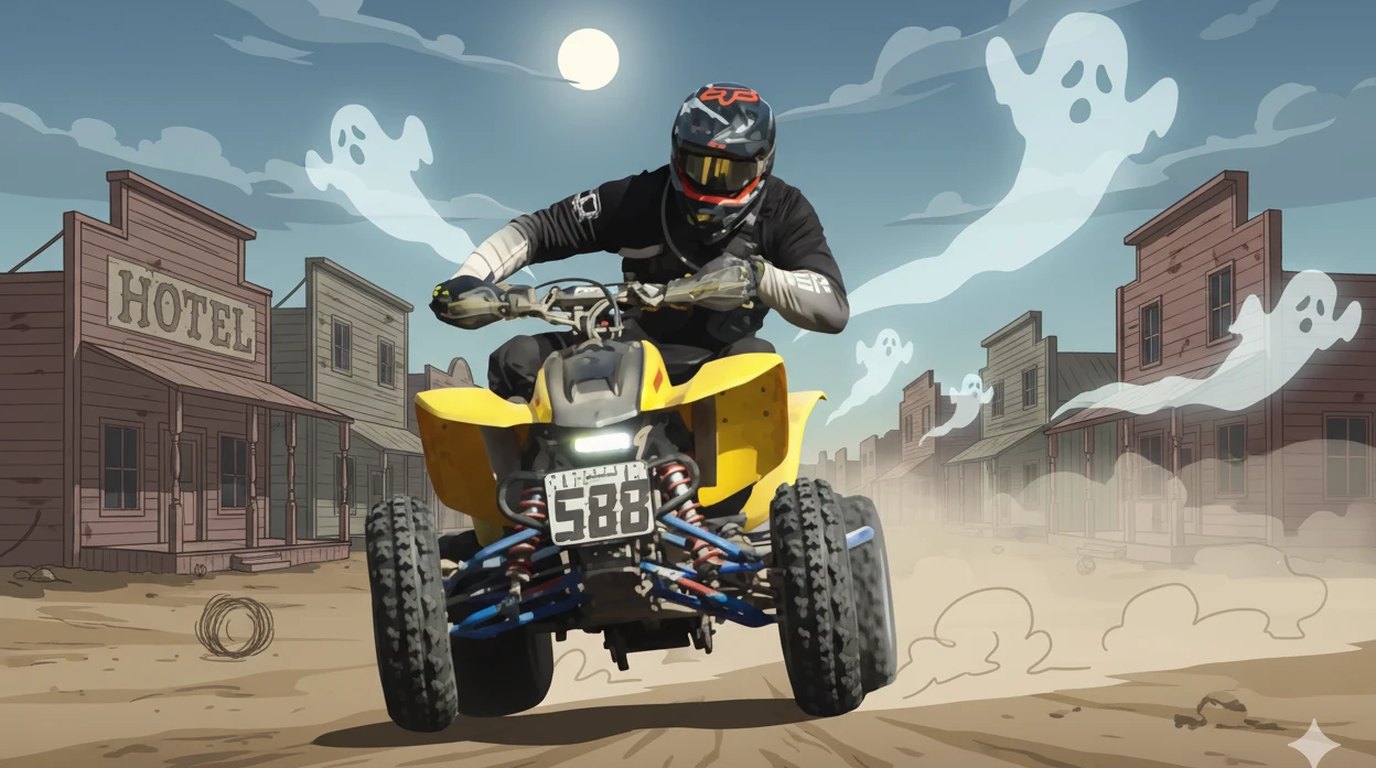
You don't need a graphic designer to put your family's name on a race-day shirt anymore. Between ChatGPT's image tool and Google's Gemini (powered by its "Nano Banana" image model), anyone can turn a race photo and a slogan into a print-ready design in a few minutes, if you know how to prompt it right. Here's how to get results that actually look good on a shirt, not just on a screen.
Why do AI tools work so well for racing shirts?
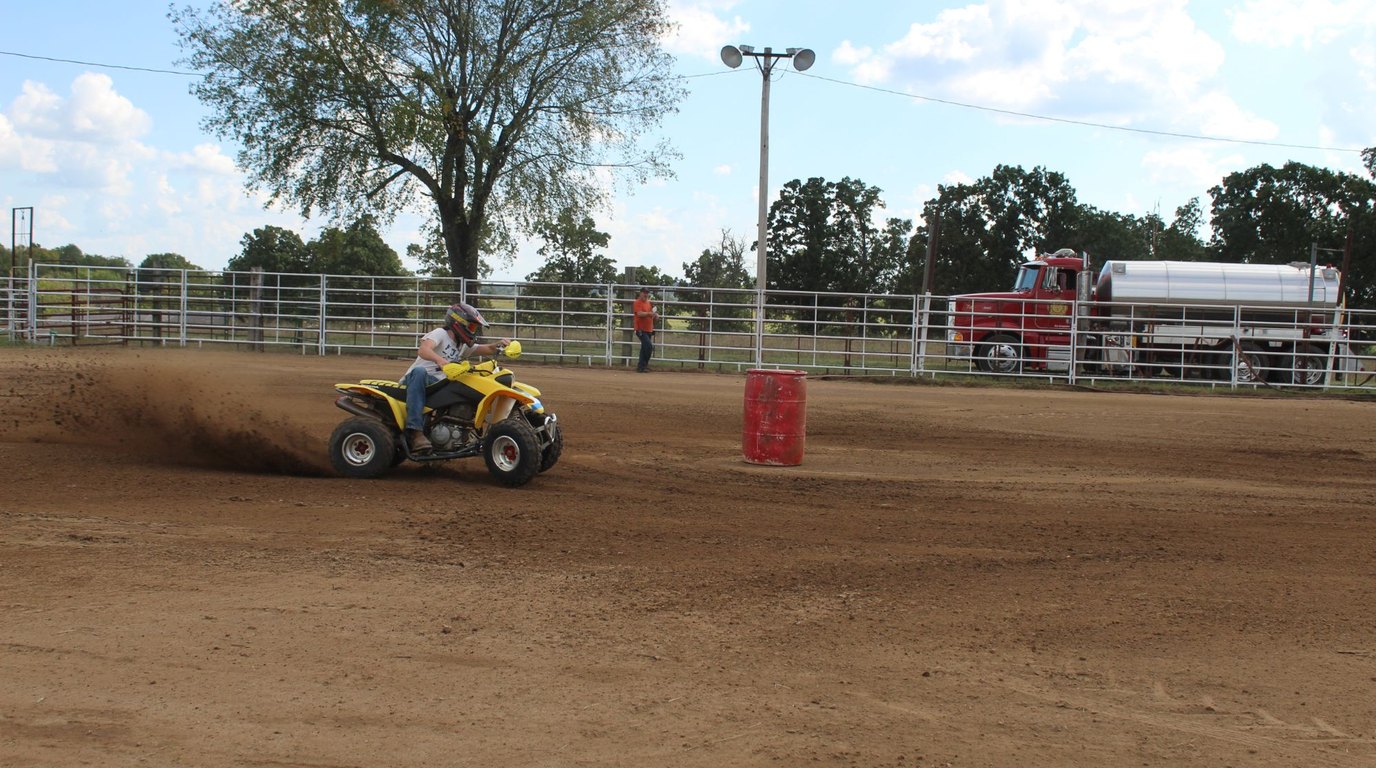
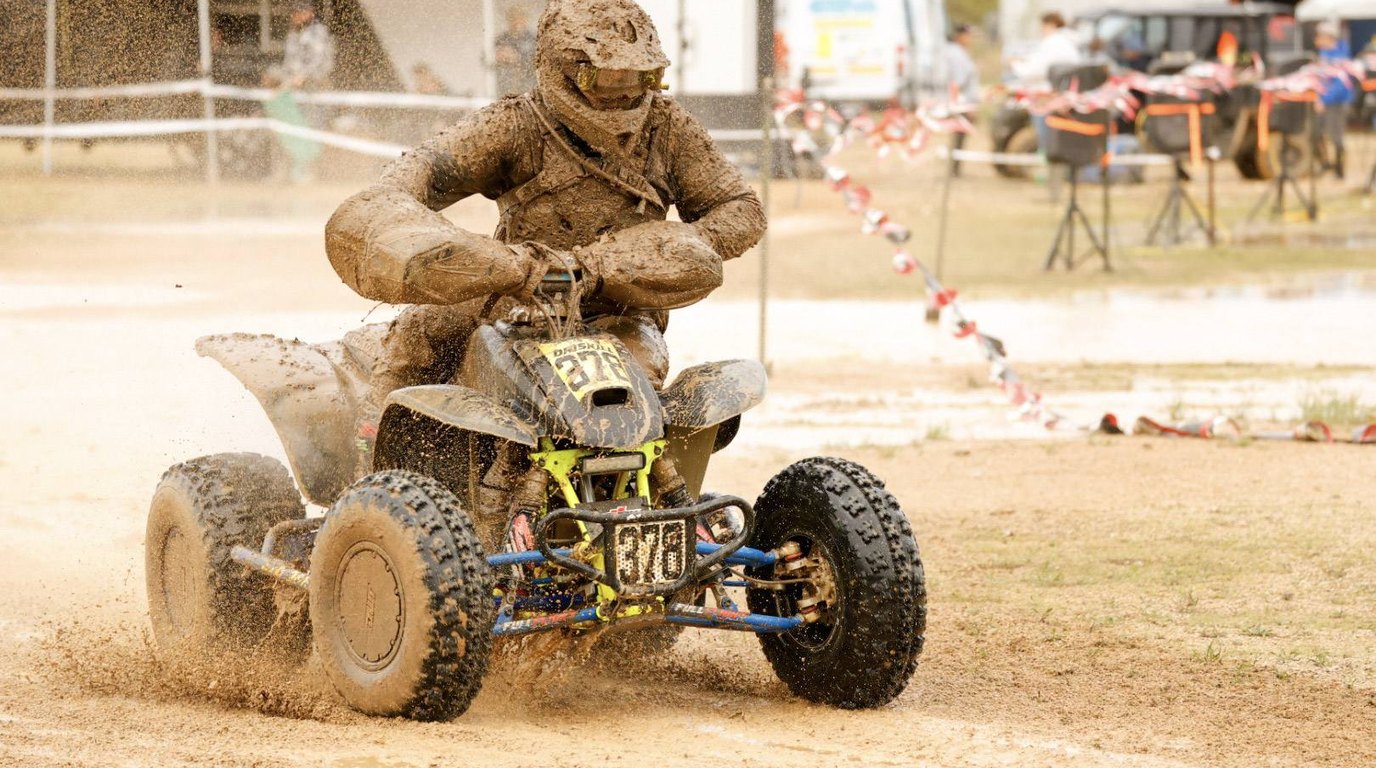
Both ChatGPT and Gemini can now take a reference photo (your quad, your number plate, your family at the track) and use it to guide a brand-new graphic. That means you're not starting from a blank prompt and hoping the AI guesses what "racing style" means to you. You show it, describe it, and it builds around your actual gear and colors.
What are the best tips for using ChatGPT?
- Follow the formula: Subject + Style + Composition + Color + Background. Naming all five in your prompt gives ChatGPT far less room to guess.
- Say the print words out loud in your prompt. Phrases like "bold lines, high contrast," "screen printing style," "simple shapes, limited colors," and "avoid gradients" push the output toward something that will actually print clean, instead of a soft, photo-realistic image that looks muddy on fabric.
- Attach your reference image directly in the chat along with the text prompt. Don't just describe the photo in words. ChatGPT reads the image and the prompt together.
- Ask for print resolution explicitly. Request roughly 4000 x 4000 pixels or "300 DPI, print-ready", otherwise you may get a web-resolution image that looks pixelated blown up on a shirt.
- Iterate in small steps. If the font or layout is off, ask ChatGPT to adjust just that one element ("keep everything the same, just make the name bigger and move the slogan below it") rather than rewriting the whole prompt from scratch.
What are the best tips for using Gemini (Nano Banana)?
- You can upload multiple reference images at once. Gemini's current image model supports blending up to around a dozen reference photos in a single prompt, so you can combine a photo of your rig, your number plate, and a family photo in one design.
- Name the specific things you want pulled from each photo. Instead of "use this image," say what to take from it, such as "use the color and shape of the number plate in this photo" or "match the red and black from this jersey photo." Vague references get vague results.
- Keep a "hero" reference image for consistency. If you're making shirts for multiple family members with a matching look, generate one strong design first, save it, and reference that saved image in follow-up prompts instead of starting over each time. This keeps the style consistent across the whole family.
- Re-anchor if the design starts drifting. If a later edit starts looking different from your original, re-upload the original reference image and say "match the original design attached" to pull it back on track.
What print tips apply to both tools?
- Avoid gradients and photo-realistic shading, because they don't screen print well. Ask for flat colors and bold outlines instead.
- Limit your palette to 2 to 3 colors for the cleanest, most affordable print.
- Always proofread the generated text. AI image tools still occasionally misspell names or slogans, so check before you send anything to a printer.
- Generate on a transparent or plain white background so it's easy to isolate the design for printing.
What sample prompts can I copy?
1. Classic family team shirt
Design a bold racing-style graphic for a t-shirt. Feature the name "[FAMILY NAME] RACING" as the main headline in an aggressive, high-impact racing font. Beneath it, add the slogan "[YOUR SLOGAN]" in a smaller, complementary font. Use the attached reference image(s) of our racers and rig to inspire the central graphic. Style it with checkered flag accents, dirt/mud splatter texture, and diagonal speed lines to convey motion and racing energy. Color palette: black, red, and white. Bold, high-contrast, screen-print-ready graphic with clean edges, flat colors, no gradients. Background: transparent.
2. Number-plate focused design
Create a t-shirt graphic centered on a large stylized number "[RACE NUMBER]" in a bold motocross number-plate font, matching the shape and color of the number plate in the attached reference photo. Wrap the family name "[FAMILY NAME]" in an arc above the number and the slogan "[YOUR SLOGAN]" in a straight line below it. Add subtle speed lines radiating from the number. Flat colors only, [YOUR TEAM COLORS], clean vector-style edges, print-ready, transparent background.
3. Vintage pit-crew badge style
Design a vintage-style racing badge/patch graphic for a t-shirt. Center it on the family name "[FAMILY NAME]" in a retro serif or script font, with the slogan "[YOUR SLOGAN]" curved along the bottom inside a circular badge border. Use the attached reference image for color and style inspiration only. Do not include the photo itself, just the badge graphic. Muted retro color palette: [YOUR TEAM COLORS]. Flat, screen-print-ready, bold outlines, transparent background.
4. Action-shot silhouette design
Using the attached reference photo, create a t-shirt graphic that turns the rider into a bold black silhouette mid-race, jumping or cornering. Place the silhouette against a dynamic sunburst or speed-line background. Add "[FAMILY NAME]" in bold block letters above the silhouette and "[YOUR SLOGAN]" below it. Two-color print only: [COLOR 1] silhouette on [COLOR 2] background, no gradients, clean print-ready edges, transparent background.
What is one final tip?
Generate 2 to 3 versions of the same prompt before you commit. Both tools give slightly different results each run, and comparing a few options usually surfaces the best one fast.
Want a shirt made from your own race photo? In the shirt designer you pick a design and upload your photo, and it becomes a cartoon-style picture on the shirt. Our photography tips show how to get a photo that works well.
Sources
- 20 Best ChatGPT Prompts for T-Shirt Designs (2026)
- ChatGPT T-Shirt Design Prompts for Better Prints
- Ultimate prompting guide for Nano Banana | Google Cloud Blog
- Nano Banana Pro: Gemini 3 Pro Image model from Google DeepMind
- Nano Banana Character Consistency Guide 2026
Frequently asked questions
Can ChatGPT or Gemini design a racing shirt?
Yes. Both can take a reference photo, such as your quad, your number plate or your family at the track, and use it to guide a brand-new graphic, so you do not start from a blank prompt.
What prompt formula works best in ChatGPT?
Subject plus style plus composition plus color plus background. Naming all five gives ChatGPT far less room to guess.
What resolution should a shirt design be?
Ask for roughly 4000 x 4000 pixels, or "300 DPI, print-ready". Otherwise you may get a web-resolution image that looks pixelated when blown up on a shirt.
Which words help a design print cleanly?
Phrases like "bold lines, high contrast", "screen printing style", "simple shapes, limited colors" and "avoid gradients" push the result toward something that prints clean instead of a soft, photo-realistic image that looks muddy on fabric.
How many colors should a shirt design use?
Limit the palette to 2 or 3 colors for the cleanest, most affordable print.
How do I keep a matching look across a whole family?
In Gemini, keep a "hero" reference image. Generate one strong design first, save it, and reference it in follow-up prompts instead of starting over, and re-upload it if a later edit starts to drift.